Your first day with Lintel.
A short guide in plain words. You do not need to be technical. Each part takes a few minutes.
What you see after installing
Almost nothing. That is the idea.
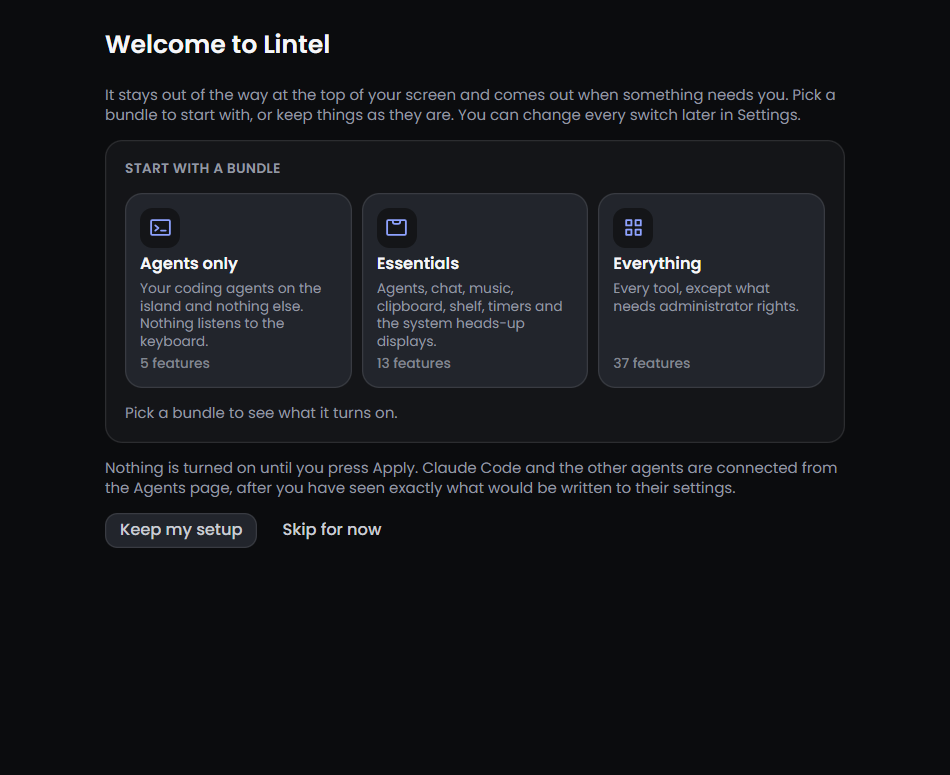
- A welcome page opens.It offers three bundles of features to begin with. Choose one. You can change every choice later.
- The island says hello.A small black strip slides down from the top of your screen. The mascot, a round face with a visor, rises onto it. After a moment it goes away.
- Lintel waits in the tray.Look near the clock, at the bottom right of your screen. You may need to click the small arrow to see its icon.
- Right-click the tray icon.You find Settings, Pause and Quit there.

Bring the island out, and put it away
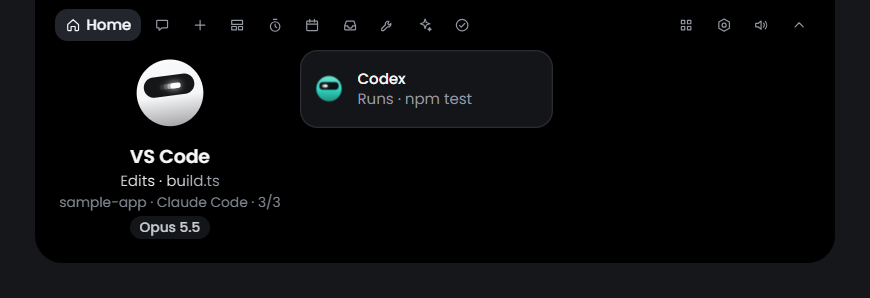
- Move your pointer to the top edge of the screen, in the middle.The small island slides out.
- Rest on it for a moment, or click it.It opens. You see tabs: Home, Chat, and one for each tool that is on.
- Move the pointer away.The island folds, then hides. A click anywhere else folds it at once.
More ways, if you like them:
- Turn the mouse wheel down on the small island to open it, and up to close it.
- Press Esc to go one step back.
- Drag the island to another place. To undo that, right-click the tray icon and choose “Put the island back”.
The island also comes out by itself when something needs you: an agent asks a question, a timer ends, the song changes. It never takes your keyboard when it appears. You keep typing where you were.
Connect a coding agent, and answer its first request
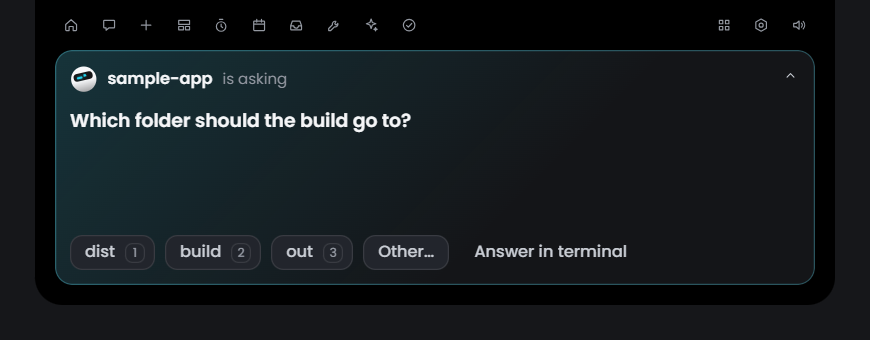
A coding agent is a program such as Claude Code that writes code for you in a terminal. It often stops to ask “may I run this command?”. Lintel shows that question on the island, so you can answer without looking for the right window.
- Open Settings.Right-click the tray icon and choose Settings.
- Open “Coding agents”.Lintel works with Claude Code, Codex, Gemini CLI, Cursor, GitHub Copilot CLI, OpenCode, Amp, Hermes, Antigravity and the Claude desktop app.
- Connect your agent.Lintel shows you exactly what it will change in the agent’s settings file. It keeps a dated backup of the file.
- Confirm.Nothing is written until you do.
- Start your agent as you always do.Give it a task.
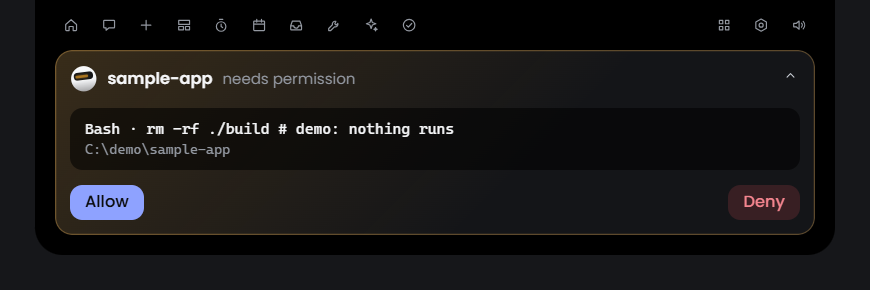
- Wait for the card.When the agent needs permission, the island slides out with a card. Read what it wants to do.
- Press Allow or Deny.The agent carries on. You never left your work.
Lintel never answers for you. No key, timer or voice command can approve a permission. Only your click can. And if Lintel is closed, your agent simply asks in its terminal, as before.
Turn features on and off
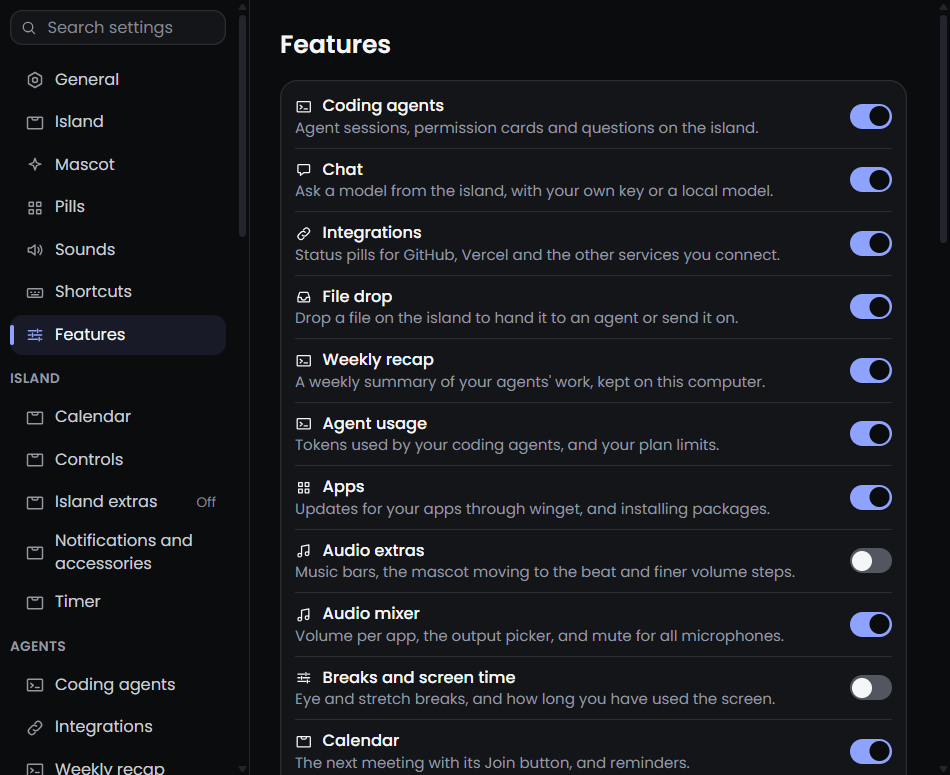
- Open Settings, then Features.Every feature is in the list, with one line that says what it does.
- Flip its switch.A feature that is on gets its own page in Settings, and often a tab on the island.
- Turn off what you do not use.A feature that is off does nothing at all. It uses no memory and no processor.
Some features start off, because they need something from you first. The feature list marks them.
The voice assistant: first steps
The assistant is off when you install Lintel. It understands English only.
- Turn on “Voice” in Settings, Features.A Voice page appears in Settings.
- Download the speech model.It is about 19 MB. It turns what you say into text, on your PC. Voice needs it before anything else.
- Press the right Ctrl key once, then speak.Try “set a timer for 12 minutes”. It listens until you stop talking. You can also hold the key while you talk.
- Watch the island.It shows what it heard, and the answer.
Other things to say: “volume 30”, “keep awake for two hours”, “remind me to call the dentist”, “what are my agents doing”.
The Voice page offers three more downloads. You can skip all of them.
- The action model (about 35 MB) understands a command said in your own words.
- The natural voice sounds more human than the Windows voices. It is about 370 MB.
- The text model (about 2.7 GB) answers open questions on your PC. It needs about 4.3 GB of memory while loaded, and on a laptop an answer takes several seconds to start.
What the assistant will never do: allow a permission, send an email, delete or empty anything, or start the camera. It opens the right card and tells you it is ready. You click to finish.
Where your data is
- On your PC. Settings, the clipboard history, notes, captures and the shelf are files in your Windows user folder.
- Keys are in Windows Credential Manager. That is where Windows keeps passwords. They are never written to a plain file.
- Nothing leaves by default. A fresh install calls no server. A feature only goes online after you turn it on or give it a key, and the documentation lists every address.
- No account, no telemetry. Lintel does not count what you do.
When something does not work
The island does not come out
- Is Lintel running? Look for its icon in the tray. If it is not there, start Lintel from the Start menu.
- Is it paused? Right-click the tray icon and look at Pause.
- Is a full-screen app or game in front? The island stays away from those on purpose.
- Did you drag it somewhere? Choose “Put the island back” in the tray menu.
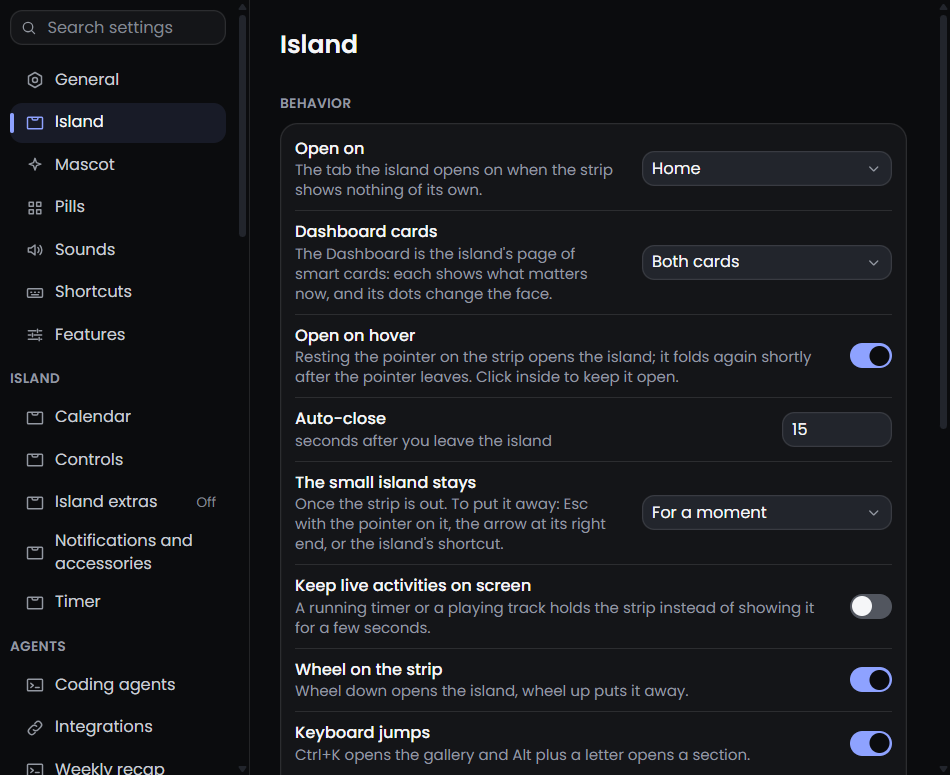
- Do you have two screens? In Settings, Island, choose the display it lives on.
No card appears when my agent asks
- Open Settings, Coding agents, and check that your agent shows as installed.
- Close the agent and start it again. It reads its settings when it starts.
One feature misbehaves
- Turn it off and on again in Settings, Features.
Still stuck
Tell us on the issues page on GitHub. Say what you did, what you expected and what happened. A screenshot helps.